
D
devildevil87
New member
- Joined
- 12.12.2023
- Messages
- 13
- Reaction score
- 97
HU Tool is designed for use with BMW CIC, NBT and EVO head units that communicate via EDIABAS or ENET based diagnostics. Behavior may vary slightly depending on software level and vehicle platform, so some options may not be available on every vehicle. For safe operation, the head unit must be supplied with a stable voltage and connected via a reliable ICOM or ENET interface. All FSC and SWT operations must be based on reliable data obtained from authorized suppliers or OEM documentation.
Basic usage:
Step-by-step guide to generating an FSC using the HU Tool :
Step 1: Launch the program.
- Launch HU Tool.
- Go to the SWT/FSC section.
Step 2: Go to the FSC generation panel.
- The FSC creation interface will appear on the screen.
Step 3: Choose a suitable head unit.
- Select the appropriate model (CIC/NBT/EVO/ID5/ID6).
Step 4: Enter vehicle information.
- Enter the last 7 characters of the VIN.
- Click "Generate" to create the FSC file.
Step 5: Get the created file.
- The system will automatically create an FSC file.
- It will be saved in the "GENERATED" folder.
Step 6: Import and activation.
- Load the FSC file using E-Sys or other FSC tools.
- Activate the navigation or map functions.
- Upon successful import, the navigation system will be fully activated.
Modify at your own risk.
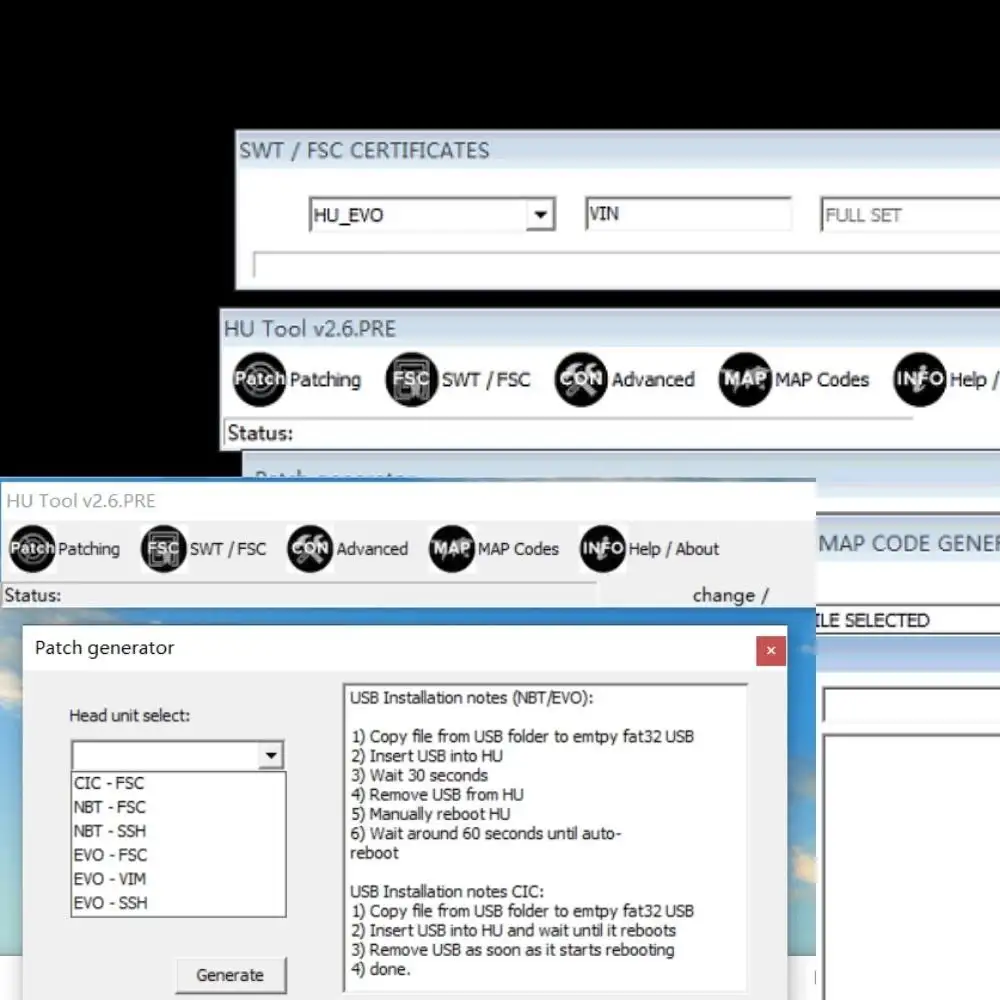
Basic usage:
- Install HU Tool on a Windows diagnostic laptop that already has the EDIABAS and BMW Standard Tools or E-Sys working environment configured.
- Connect to the vehicle's head unit via ICOM or ENET and verify the connection using your usual diagnostic software before launching HU Tool.
- Use the main tabs to access the functions required to perform the current task, such as the certificates workspace, head unit update projects, and the engineering console.
- When preparing projects using a USB drive, always follow the on-screen instructions for the selected head unit type, and make sure the correct VIN and platform are selected.
- Upon completion of the session, close the HU Tool program and recheck the head unit using standard diagnostic equipment to ensure that all functions and coding parameters match the expected values.
Step-by-step guide to generating an FSC using the HU Tool :
Step 1: Launch the program.
- Launch HU Tool.
- Go to the SWT/FSC section.
Step 2: Go to the FSC generation panel.
- The FSC creation interface will appear on the screen.
Step 3: Choose a suitable head unit.
- Select the appropriate model (CIC/NBT/EVO/ID5/ID6).
Step 4: Enter vehicle information.
- Enter the last 7 characters of the VIN.
- Click "Generate" to create the FSC file.
Step 5: Get the created file.
- The system will automatically create an FSC file.
- It will be saved in the "GENERATED" folder.
Step 6: Import and activation.
- Load the FSC file using E-Sys or other FSC tools.
- Activate the navigation or map functions.
- Upon successful import, the navigation system will be fully activated.
Modify at your own risk.
Download attachments
-
HU.Tool.v2.6.PRE.rarExternal link · Views: 2

